


This guide has 3 steps, in about 65 minutes.
It is for merchants whose box already gets orders.
Each step has small steps inside. You can pause between steps.
Her box gets orders now.
But most stop at exactly four candles.
She feels braver than in Level 1. She still has questions:
- Will a reward cost me money?
- Will shoppers notice it?
- Will my box get confusing?
We take it one step at a time again.

What you will have
- ✓One reward for bigger orders that you can afford.
- ✓A box where shoppers can add more.
- ✓Messages that show what they unlock.
- ✓An extra offered at the right moment.
- ✓A tested box, on a phone and a laptop.
Before you start
- A live box with a few orders, ideally after Level 2.
- Your baseline numbers from Level 2, or about 5 minutes to note them.
- What one product costs you to make and ship.
- If you choose a Subscription: a supported subscription app installed, with a plan that includes all the products in your box.
The 3 steps at a glance
 Build better bundles.
Boost every order.

Write down your starting numbers
If you did this in Level 2, reuse those numbers and the same date range.
- Open the Easify app and go to Analytics.
- In Box Performance, set a date range, such as the last 14 days.
- Write down Average Box Value, Average Order Value, Boxes Sold, and Box Revenue.
- Write down the date range next to them.
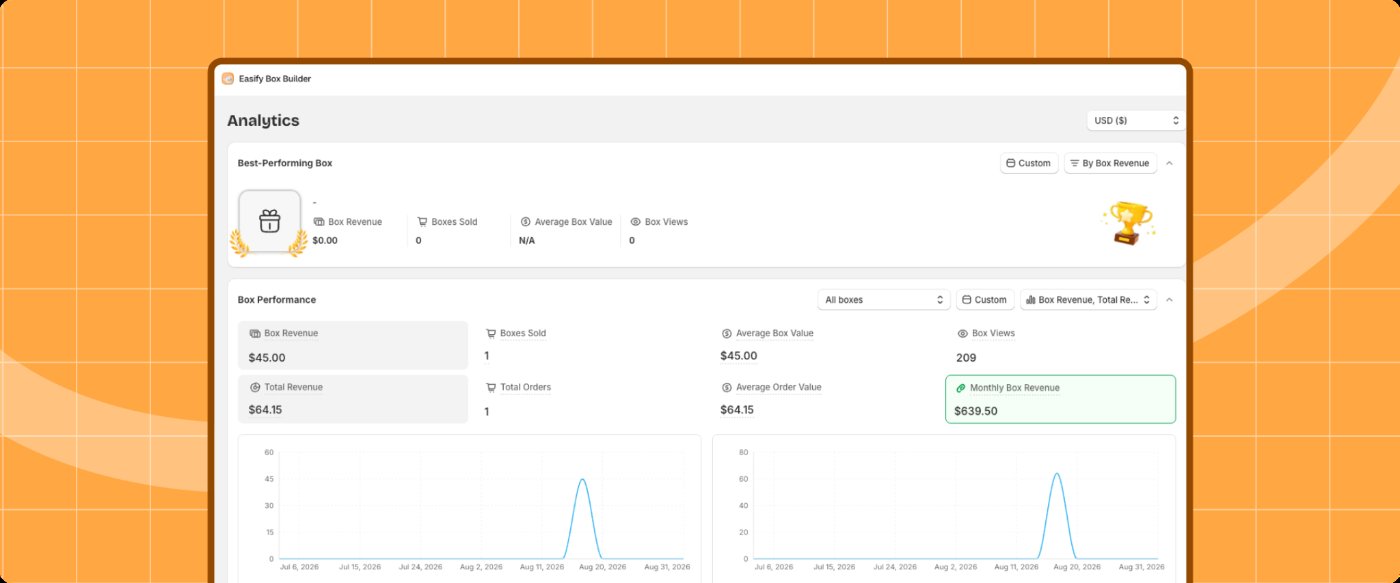
She notes her Average Order Value and saves it in her note.
Run Convert Better: AOV
- Open the Revenue Hub.
- In Convert better, open the AOV tab and click Let's get started.
- Read the checks: Volume Discounts and AI Bundle Recommendations.
- If Volume Discounts is not done yet, click the button next to it.
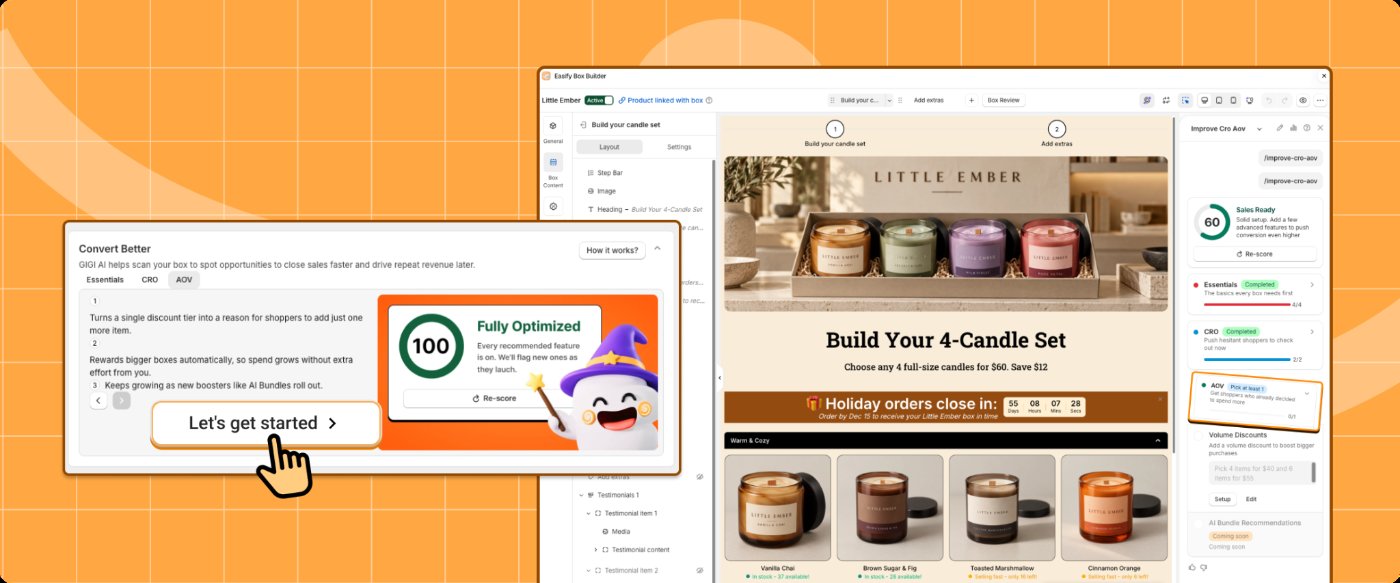
A counter shows how many checks are done. AI Bundle Recommendations is marked Coming soon.
Check your box type
A reward for bigger orders needs a box where shoppers can add more.
A Fixed Box Price has no room to grow. The shopper picks the set number and stops.
If you plan to choose a Subscription in 1.4, it works with any box type, so you can keep your box as it is.
Her Candle Gift Box is a Fixed Box Price: any 4 for $60. Shoppers can't pick six. So she keeps that box as it is, and makes a second one.
- 1In Shopify, open Easify Box Builder > Box Management.
- 2Click Create box.
- 3Choose Regular Box and set it up as in Level 1.
- 4Name it "Build Your Own Candle Set."
Her first box stays Active. The new one stays a draft until she has tested it.
Pick one reward
One clear offer is easier to understand than two.
A volume discount works with the Tiered Quantity Discount box type. For a Regular Box, a free gift is the simpler choice.
A subscription is different. It does not raise one order. It lets a one-time buyer come back on a plan. It needs a supported subscription app, with a plan that includes all the products in your box. See Common questions for the list. Subscription app compatibility
You can add the other one later.
Check your margin first- Find what a full box costs you to make and ship.
- Find what the gift or discount costs you at the top level.
- Check that you still make a profit there.
- If you don't, lower the reward.
She checks what a candle costs her. She chooses a free gift: a candle sampler at six candles.
✓ Done when:
Step 1 of 3 complete. You know which reward to offer.
Mia has a box that can grow, and a plan. This is a good place to pause. Step 2 sets it up.

Set up the reward
- 1Open your box in the Visual Editor.
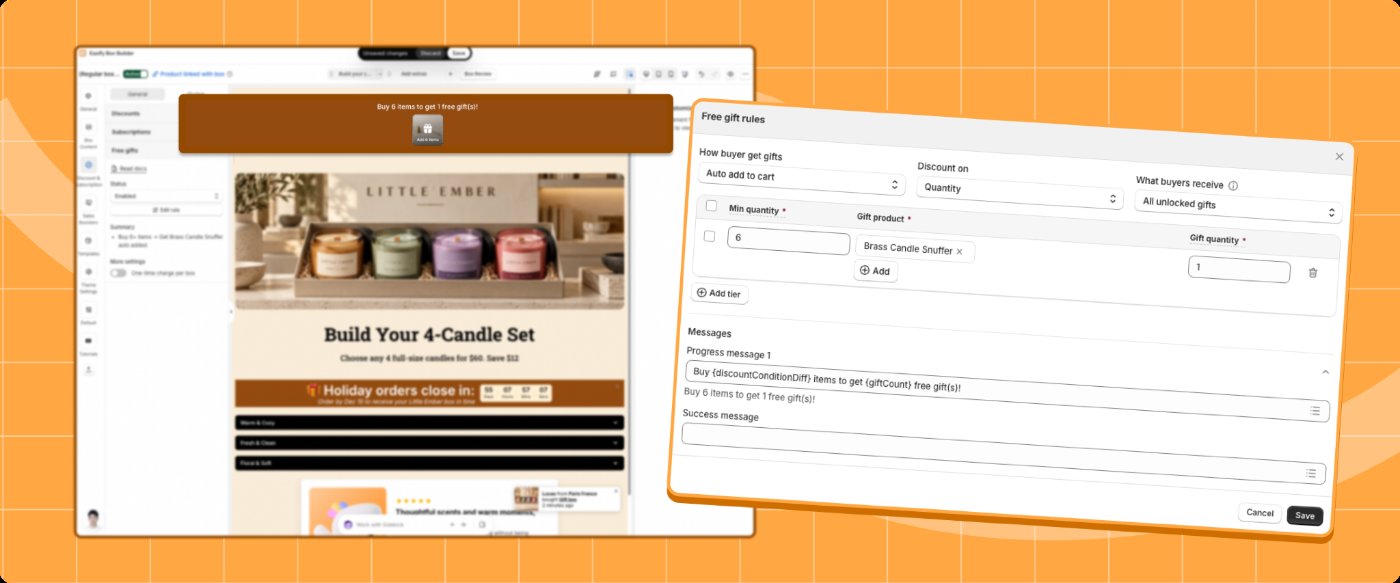
- 2Go to the Discount & Subscription tab and open Free gifts.
- 3Set Status to Enabled.
- 4Click Add rule. The Free gift rules window opens.
- 5Choose How buyers get gifts: Auto add to cart or Buyer manually chooses.
- 6Choose What buyers receive: All unlocked gifts or Highest-tier gifts only.
- 7In the first row, enter the Quantity, click Add to choose the Gift product, and set the Gift quantity.
- 8Click Save.
- 1In Discount & Subscription, open Discount and set Status to Enabled.
- 2Click Edit Rules, then Add Tier.
- 3Choose Amount off or Percentage off, and Quantity or Amount.
- 4Enter the minimum and the discount value, then click Save.
First, in your subscription app:
- Create a plan that includes all the products in your box.
- Set one or more selling frequencies, such as weekly or monthly.
- Save the plan and check that it is active.
Then, in the Visual Editor:
- 1In Discount & Subscription, open Subscriptions and set Status to Enabled.
- 2Click Get plans to load the plans from your subscription app.
- 3Select your plan from the dropdown.
- 4Review the selling frequencies in the setup panel and in the preview.
Keep it in sync. Changes in your subscription app do not reach your box on their own:
- If you add or remove plans, or switch apps, click the Sync icon next to the plan dropdown.
- If you change frequencies or other plan details, click Sync again in the Subscriptions section.
See the full guide: Subscription guide
She enables Free gifts and adds a rule. Row one: Quantity 6, gift product Mini Candle Sampler, Gift quantity 1. The gift is added automatically.
Make the saving visible
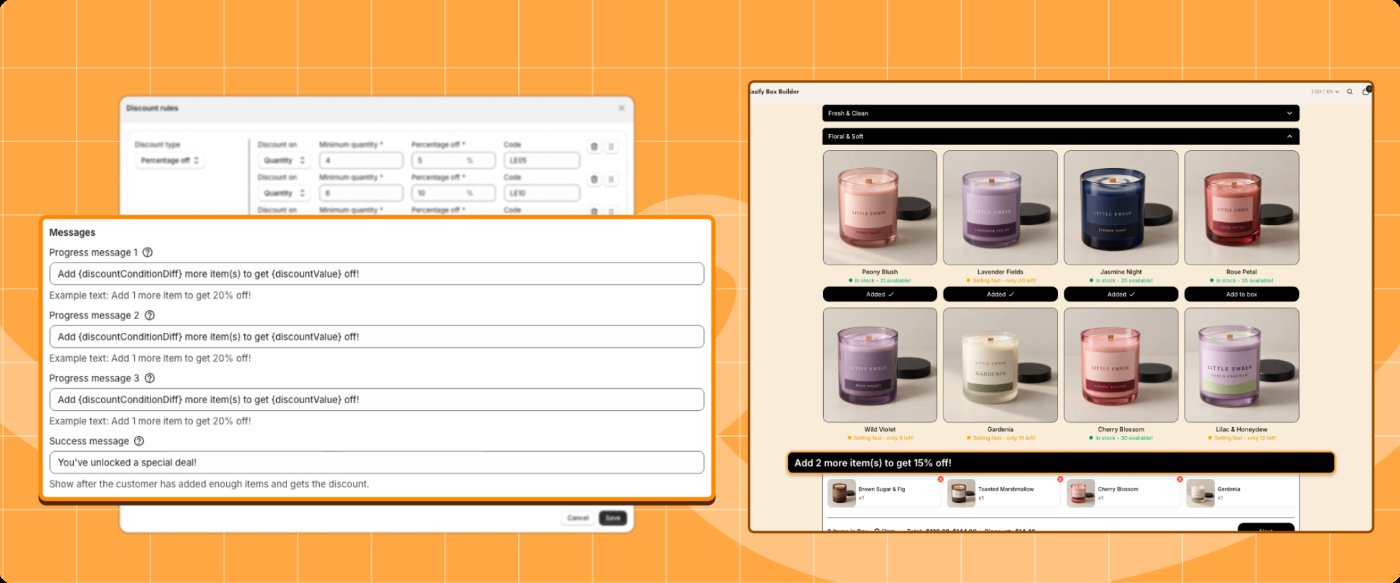
- For a free gift, open your rule and write the Success message.
- For a volume discount, find Message. Write the Progress Message and the Success Message.
- Check that the Free Gifts Bar shows at the top of your box.
- To show it in the sidebar too, go to Theme Settings, open Quick Summary, and enable Free Gifts Bar.
- 1Click Customize display.
- 2Edit Frequency name to show shorter, friendlier labels.
- 3Edit Frequency badge to highlight one frequency, or leave it blank to hide badges.
- 4Edit Section title, or leave it blank to remove the title.
- 5Choose the Default option, One-time purchase or Subscribe & Save, that is pre-selected when the page loads.
In a sidebar Quick Summary, the subscription section appears inside the Quick Summary. In a footer Quick Summary, it appears above the product list.
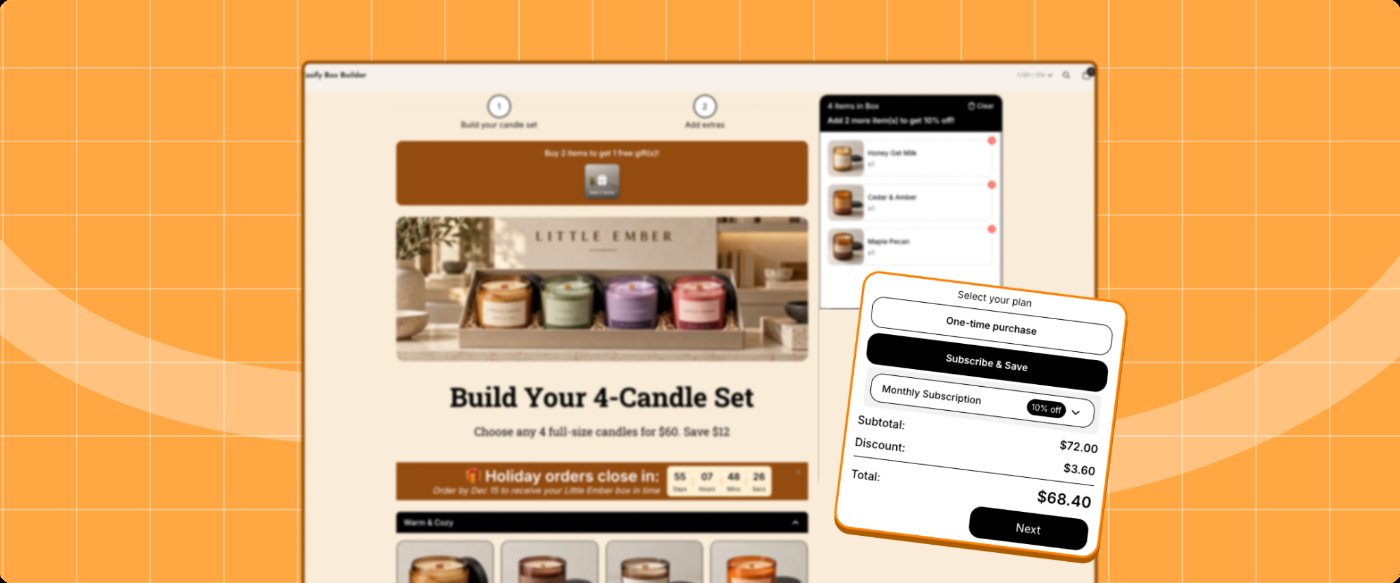
A tip: badge one frequency, not all of them.
Keep the numbers true. A message that doesn't match the reward costs you trust.
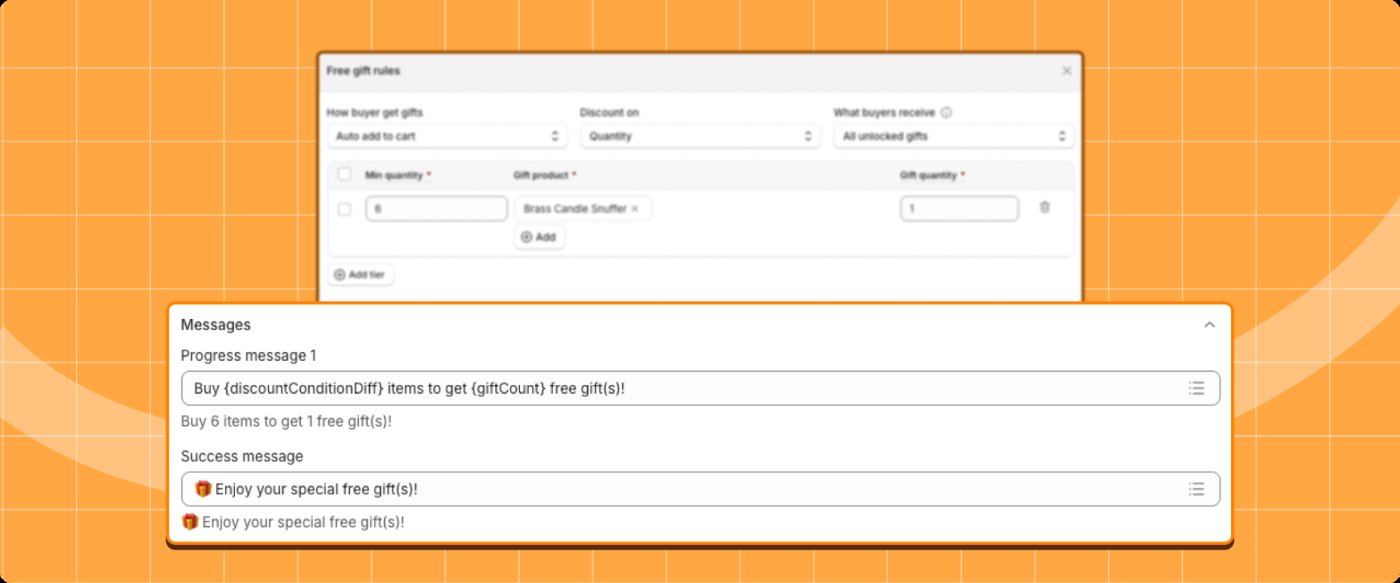
At six candles her success message reads "You've unlocked a free sampler." Her Free Gifts Bar shows shoppers how close they are.
First result: open your box on your storefront. Add items until you pass the threshold. You should see the bar and the success message.
Optional: Let the reward grow
This part is optional. You can skip it and come back later.
A bigger order should feel more rewarded.
- 1Open your Free gift rule.
- 2Add one more row for the next level. Enter a higher Quantity, the Gift product, and the Gift quantity.
- 3Under What buyers receive, choose All unlocked gifts or Highest-tier gifts only.
- 4Check that the top level still works for your margin.
- 5Click Save, then step through each level on your storefront.
- 6For a volume discount, click Add Tier to add a higher level.
She adds a second row. Quantity 10, gift product Travel Tin Candle. She keeps All unlocked gifts, so ten candles earn the sampler and the tin.
✓ Done when:
Step 2 of 3 complete. Shoppers can see the reward.
Mia's box now gives a reason to add more. This is a good place to pause. Step 3 adds an extra and tests everything.

Offer an extra
Choose one:
- An add-on step: a step right after the main selection, with accessories or small extras.
- An add-on on a custom field: in Box Content, use Add-on Price for an extra charge, such as gift wrap. Use Add-on Product to add a separate product, such as a card.
Start with the add-on step. It is the simplest.
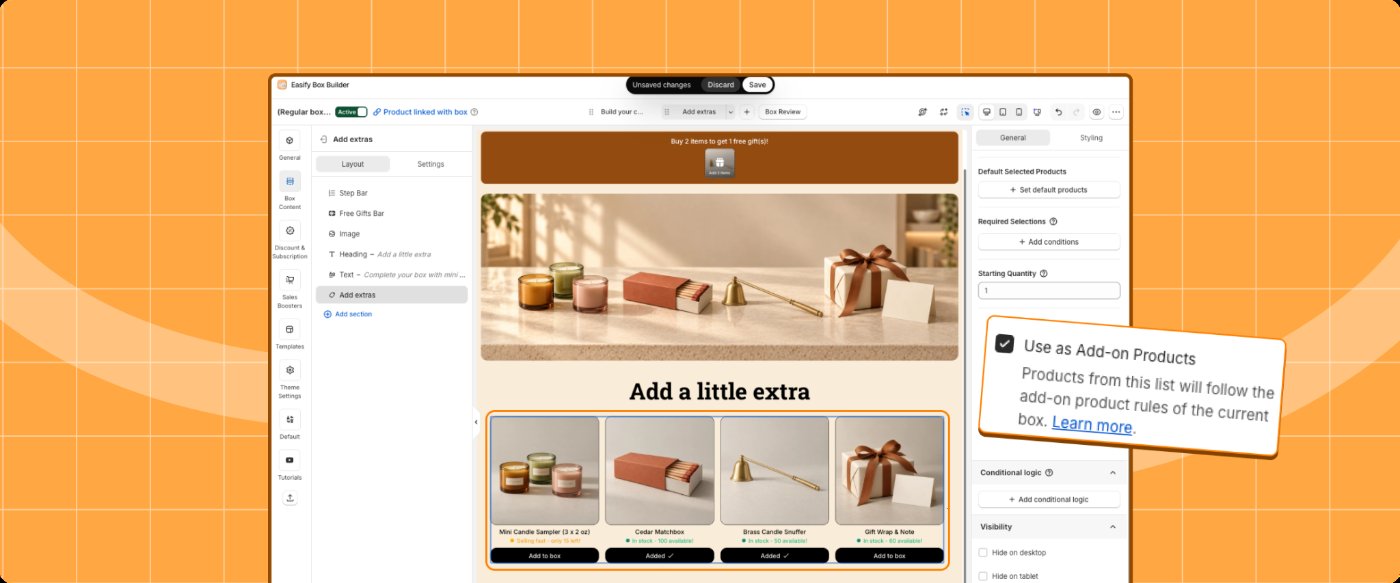
An optional step for a matchbox and a candle snuffer. It comes right after her candle picks.
Turn on the Quantity Selector
Without it, a shopper who wants two of the same item can't add them.
- 1In the Visual Editor, go to Theme Settings.
- 2Open Add To Box Button Behavior.
- 3Under Products without variants, choose Quantity selector instead of Added.
- 4Under Products with multiple variants, choose how the button behaves. Quantity selector is under Replace selected variant.
- 5Open your box on your storefront. Check that you can raise the quantity.
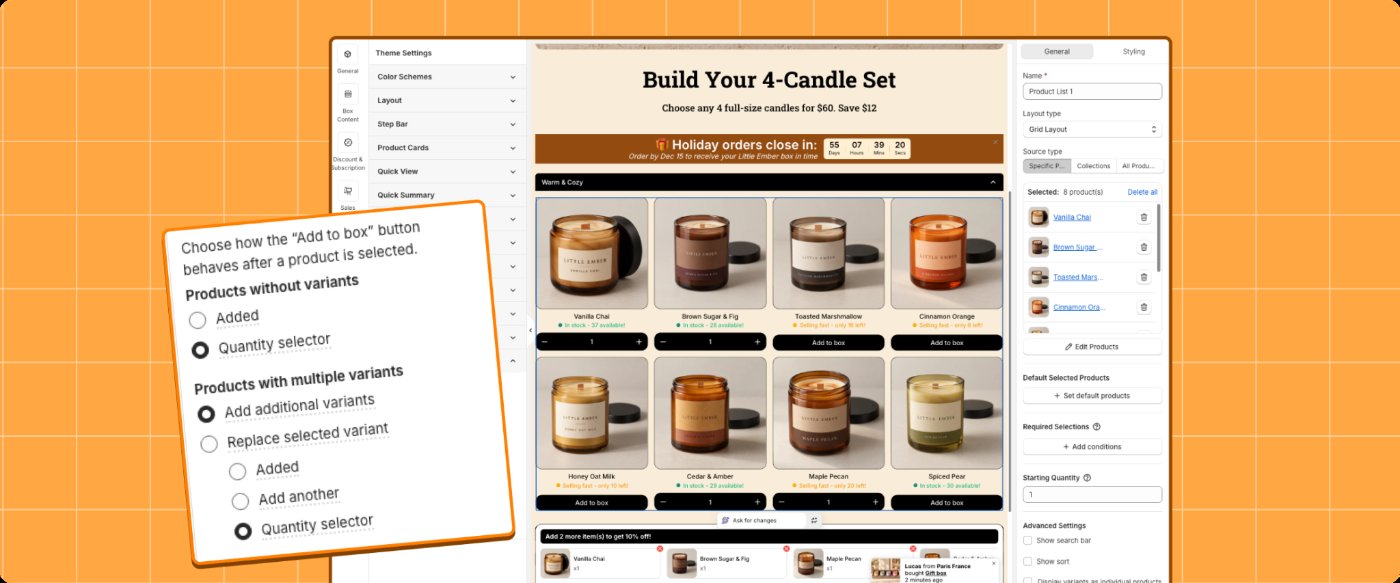
Shoppers can now take two of a favorite scent. That helps them reach six.
Check it as a shopper
Use a phone first, then a laptop. Open a private window.
- 1Open "Build Your Own Candle Set."
- 2Add four candles. Check the Progress Message.
- 3Add two more. Check the Success Message and the gift.
- 4Keep going to ten. Check the second gift.
- 5Add the extra from your add-on step.
- 6Continue to the checkout step. Check that the gift shows as free and the total looks right.
- 7If you use a Shopify discount code too, try it once here.
- 8If you set up a Subscription, check that the plan selector shows the right frequencies and the default option. Then check out with a plan enabled.
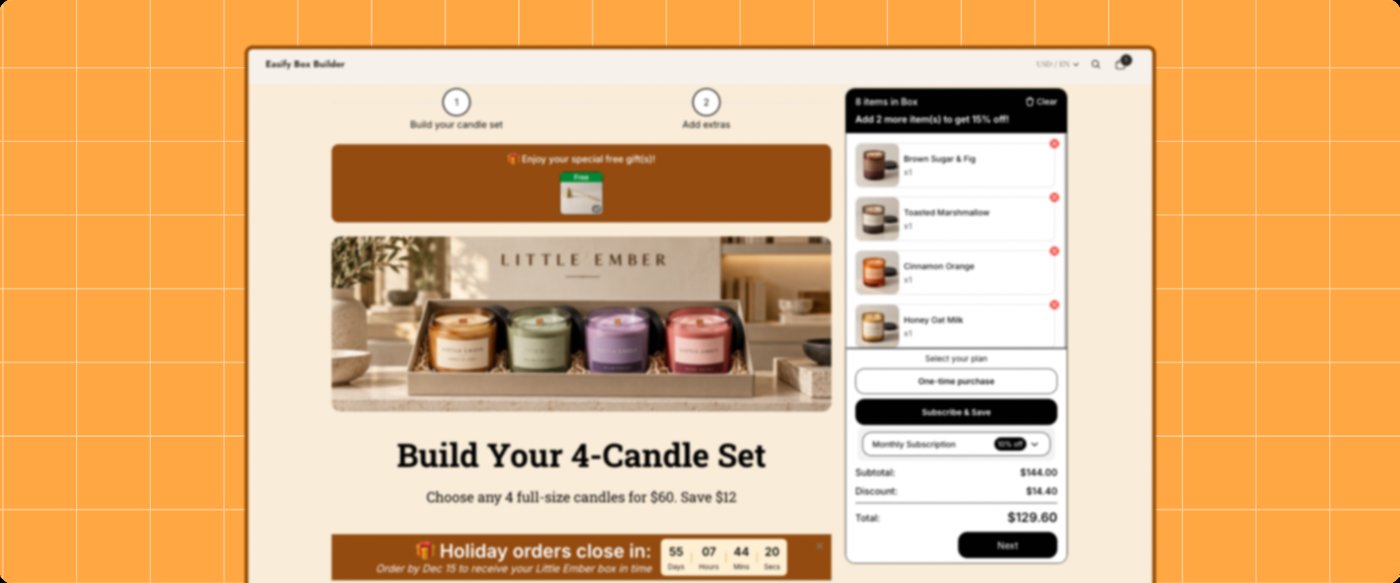
Always test through the box. A subscription does not apply if the Linked Product is added to the cart directly.
Fix what looks wrong. Then check again.
When it all works, set the box to Active, as in Level 1.
On her phone, the sampler appears at six. At ten, the tin appears too. She sets the box to Active.
Optional: ask an AI agent for ideas
An AI agent can walk through your box like a first-time shopper. It can make mistakes, so check each idea before you use it.
Give it this prompt, with your own link:
Act as a first-time shopper on [your box link], on a phone-sized screen. Build a box from the first step to the cart. At every step, tell me what you expected, what confused you, and any bug or dead end you hit. Then give me a ranked list of specific fixes. Also suggest one add-on and one reward level for this box.
Pick one idea. Try it in the Visual Editor. Keep your live box as it is until you've tested the change.
✓ Done when:
Step 3 of 3 complete. Level 3 is done.
Mia's box now rewards a bigger order, and she can see how it goes.
Common questions
Can I use a volume discount and a free gift together?
Start with one. Two rewards at once are harder to read and to afford.
Add the other once the first is working.
Which subscription apps work with Easify Box Builder?
Apps that support plans with more than one product. These apps are compatible: Appstle Subscriptions App, Seal Subscriptions App, Subi: Subscriptions & Loyalty, Kaching Subscriptions App, Loop Subscriptions App, Shopify Subscriptions, BOLD Subscriptions App, Super Subscriptions, Recurpay: Subscription Partner, Casa Subscriptions App, ECA: Easy Subscriptions App, Easto Subscriptions App, and RecurrinGO! Subscriptions App.
Joy Subscriptions App and PayWhirl Subscriptions are not compatible, because they only support single-product plans.
Is your app not on the list? It may not be tested yet. Contact the app's vendor to check. Subscription app compatibility
Do I need a subscription plan before I create the box?
No. Create the box first and link the plan afterward. The plan must exist in your subscription app before you can select it.
Why doesn't my subscription show or apply?
Check these:
- Subscriptions Status is Enabled, and you selected a plan.
- The plan includes all the products in your box.
- You clicked Sync again after changing the plan in your subscription app.
- You are testing through the box, not by adding the Linked Product to the cart.
How do I know my reward is working?
Compare with your starting numbers. Use the same date range and the same length of time.
Change one thing at a time where you can.
Does my new box go live right away?
No. It stays a draft until you set it to Active.
