

Your first live box, in one sitting.
This guide walks you through launching your first box with Easify Box Builder in 3 steps, in about 50 minutes.
It is for merchants who just installed Easify Box Builder and have no live box yet.
Each step ends with a checkpoint, so you can pause and come back anytime.
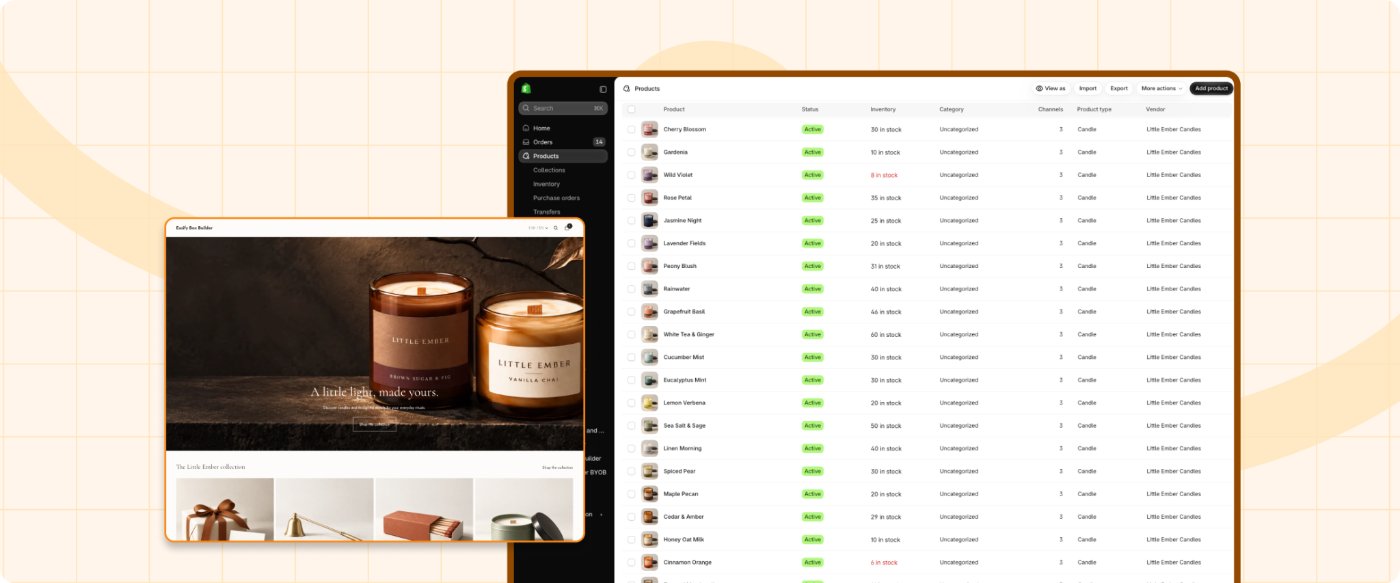
A fictional candle shop owner who joins you in all four guides.
She sells 24 candles in three scents. Her idea: “Pick any 4 candles for $60.”
She just installed Easify Box Builder, and she is nervous:
- Will the box look like her shop?
- Will she be charged before her first sale?
- What if she clicks the wrong thing?
You may feel the same. We take it one step at a time.
What you will have at the end
- ✓A box that is Active and that shoppers can reach from your storefront
- ✓A box that looks like the rest of your store and fits desktop, tablet, and mobile screens
- ✓A Convert Better Essentials check with every item done
- ✓A walkthrough you did yourself on a laptop or phone, from opening the box to the checkout step
Before you start
- Easify Box Builder is installed on your Shopify store
- The products for your box are already in Shopify
- A laptop or phone is within reach for the last step
The 3 steps at a glance
 Build better bundles.
Boost every order.

Decide what your box is
Write one sentence that says what shoppers build and what they get, for example “Pick any 4 candles for $60.”
Then choose the box type that fits how your customers already buy:
Not sure? Start with Fixed Box Price for your first box.
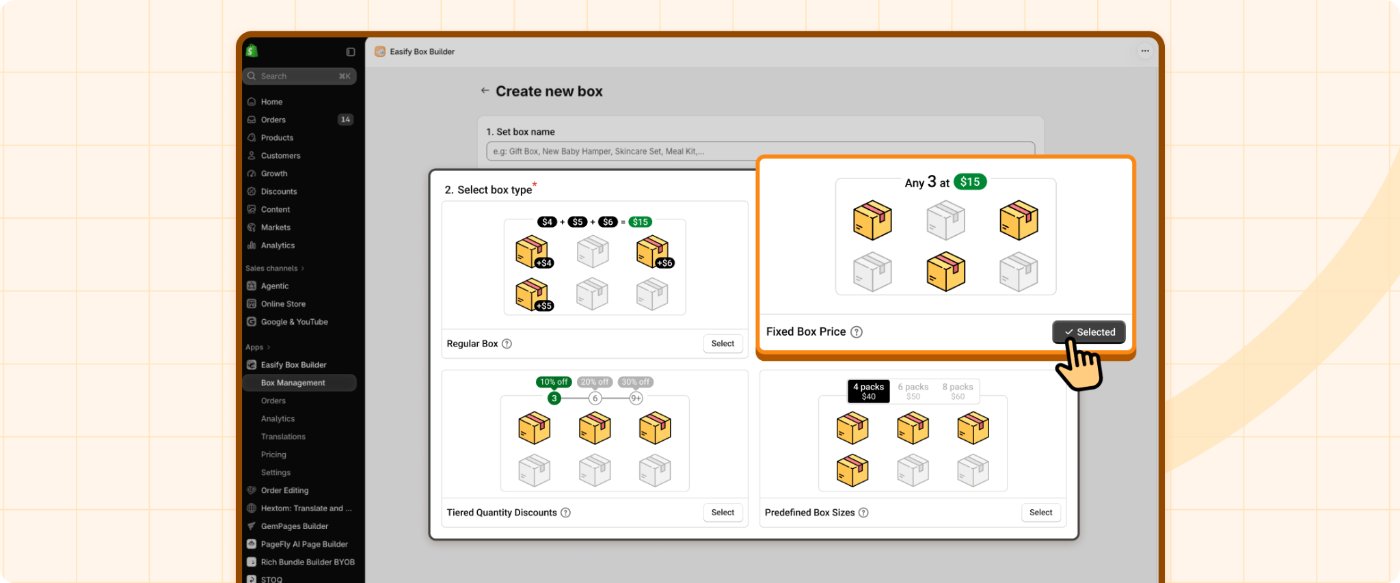
Mia writes her sentence and picks Fixed Box Price. Once the box is one sentence, the rest feels smaller.
Build the box and add real products
Empty product lists break the experience, and very long ones make shoppers give up.
- 1Open the Easify Box Builder, create the box, and add its steps and product lists.
- 2Assign real products to every product list, with no placeholders.
- 3If a list has more than about 30 items, set its display to Tabs or Accordion.
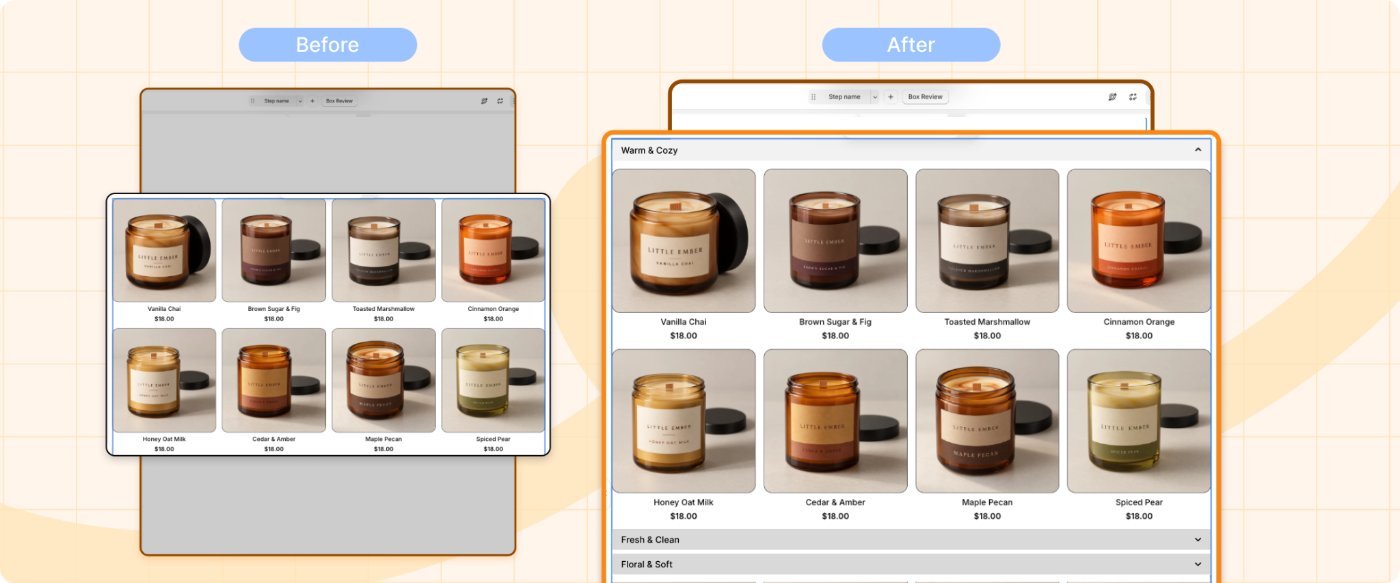
Mia expected this part to be hard. It is mostly picking products. She groups her 24 candles into three tabs by scent.
Make it look like your store
Two small changes make the box feel like part of your store:
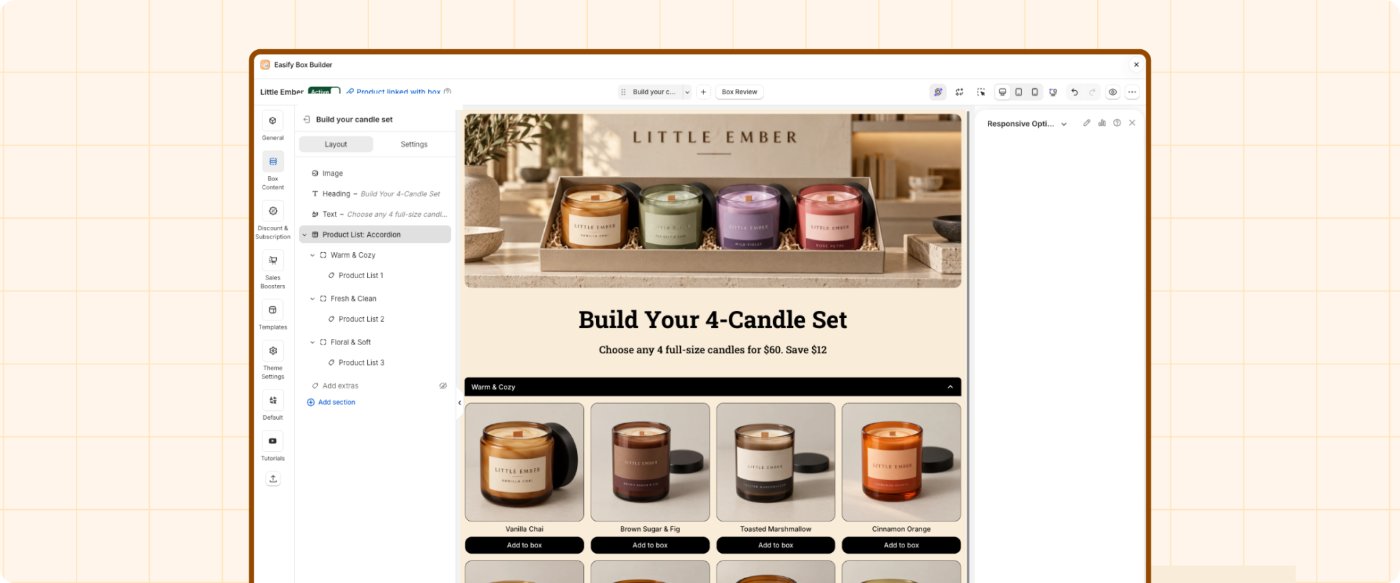
- Upload a cover image that shows what's inside. A lifestyle shot usually works better than a plain product photo.
- Apply your store's theme to the box at least once, so colors, fonts, and spacing match.
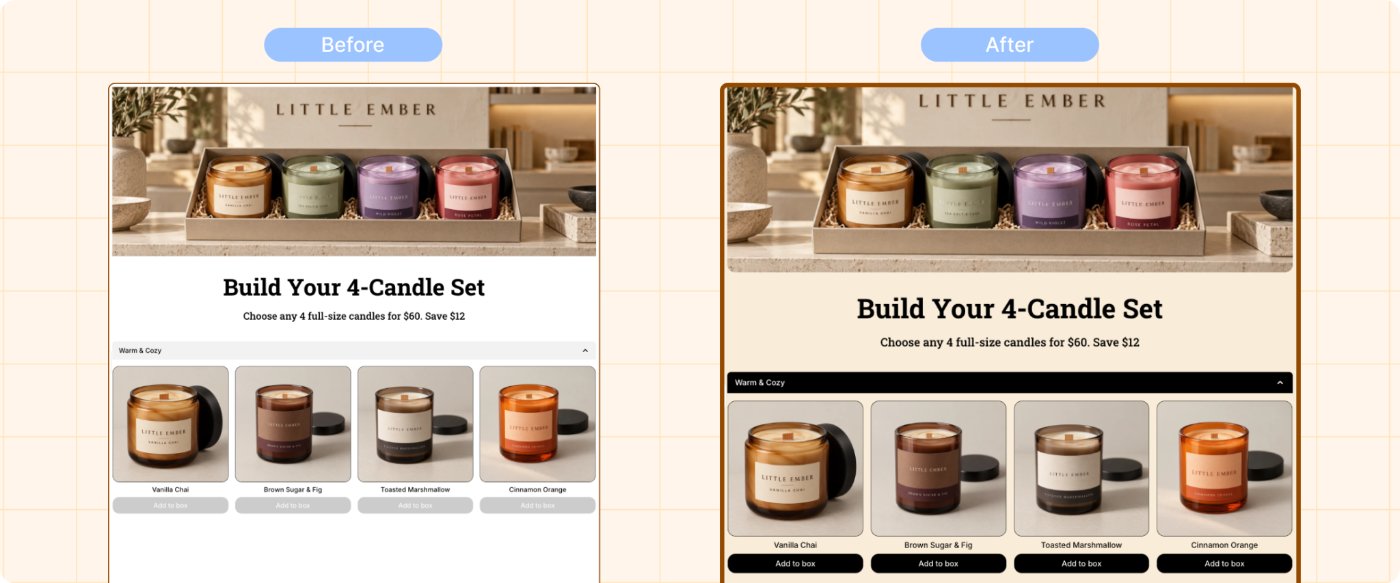
Mia's second worry was a box that looks like it came from a different shop. She uploads a photo of her four-candle gift set on her shelf, then applies her store's fonts and colors.
Apply AI Responsive
Shoppers will open your box on screens of every size. The AI Responsive Optimizer adjusts the box to fit them, across all three views: Desktop, Tablet, and Mobile.
- 1Open your box in the Visual Editor.
- 2Click the AI Responsive Optimizer icon.
- 3Review the results across Desktop, Tablet, and Mobile.
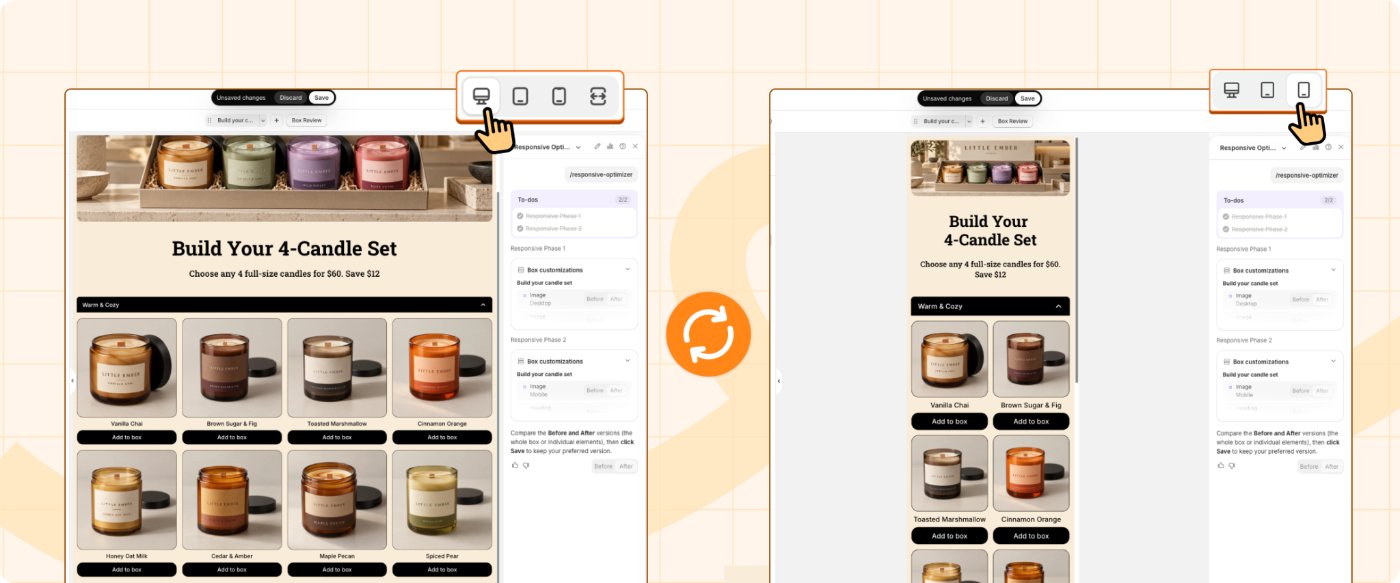
Mia checks the Mobile view first when she reviews the results.
✓ Done when:
Step 1 of 3 complete. Your box is built.
Mia's first worry is behind her. This is a good place to pause. Your work is saved. Step 2 puts your box live.

Choose a plan
Subscribing starts your free 14-day trial and unlocks the app. Until you subscribe, your boxes stay in draft and hidden from your storefront.
- 1In the Easify Box Builder app menu, click Pricing.
- 2Subscribe to Start (Free).
You won't be charged while your box revenue stays under $500 in a billing cycle. Read the detailed guide to Pricing plans, trial and billing.
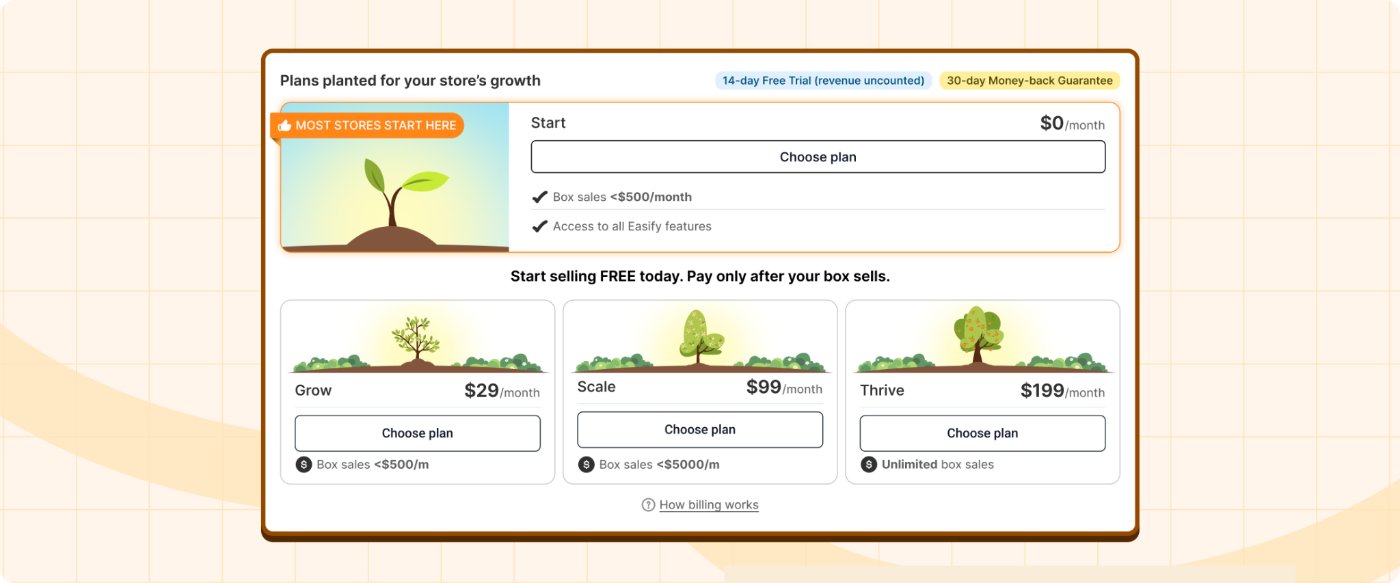
Mia chooses Start (Free) and reads the line about $500 twice before she clicks.
Activate your box
Only boxes in Active status show on your storefront. A finished box that isn't Active gets no traffic.
- 1Open the box in the Visual Editor and go to the General info tab.
- 2Switch the status to Active.
- 3Click Save.
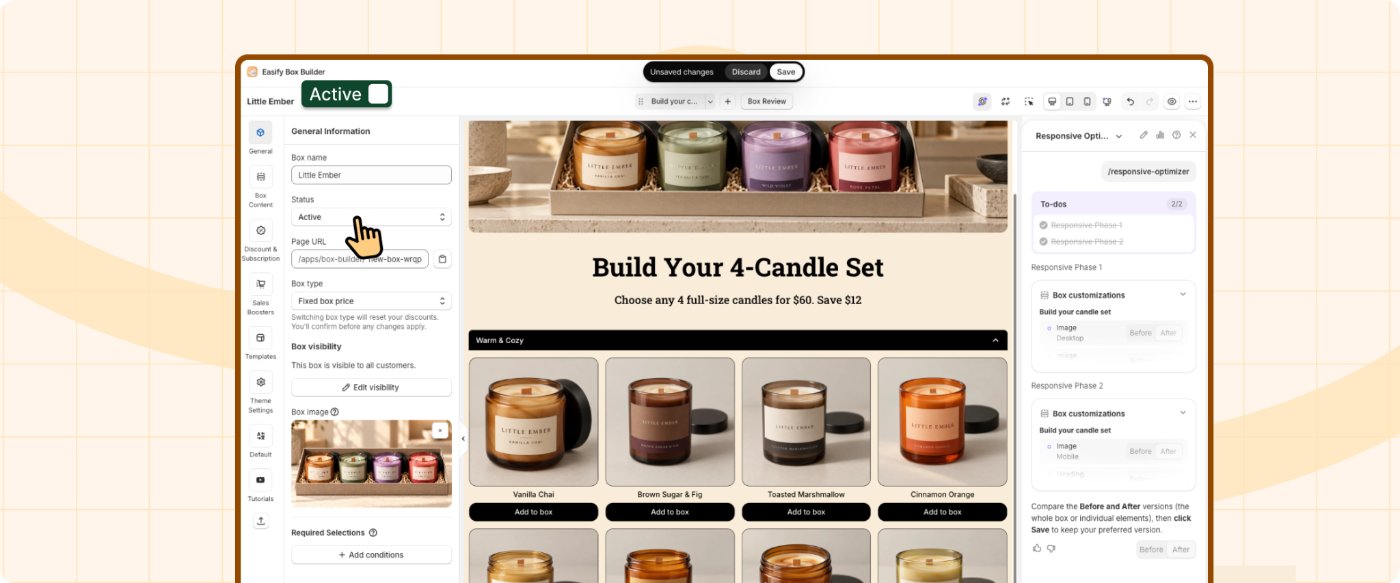
Mia hesitates at the switch.
Run Convert Better: Essentials
Convert Better scans your box and gives it a score. The Essentials group covers the basics every box needs before it's ready to sell.
- 1Open the Revenue Hub, go to Convert better, open the Essentials tab, and click Let's get started.
- 2Read the five checks: Box Status, Box Image, Product Selection, Product grouping, and Theme Match.
- 3If a check isn't done, click the button next to it: Activate, Upload image, Assign product, Setup, or Match theme.
- 4Click Re-score to see your score go up.
Mia isn't sure she has done everything. Convert Better keeps track for her.
Most checks match work you have already done:
- Box Image and Theme Match come from Step 1.3
- Product Selection and Product grouping come from Step 1.2
- Box Status comes from Step 2.2
✓ Done when:
Step 2 of 3 complete. Your box is live.
Mia's money worry is gone, and her Essentials score is up. Another good place to pause. Shoppers will not find the box until Step 3 puts it on your storefront.

Put the box on your storefront
A live box nobody can find won't sell. Turn on the app embed once, then place the blocks where you want to sell.
- 1Open the Shopify Theme Editor and turn on the Easify Box Builder app embed.
- 2Add the Easify Box Builder Block, which displays the box itself, where it should appear.
- 3Add the Easify Box Builder Button Block, a button that leads into the box, to a page such as a collection page.
- 4Open each page or template you set up and check that the box and the button show.
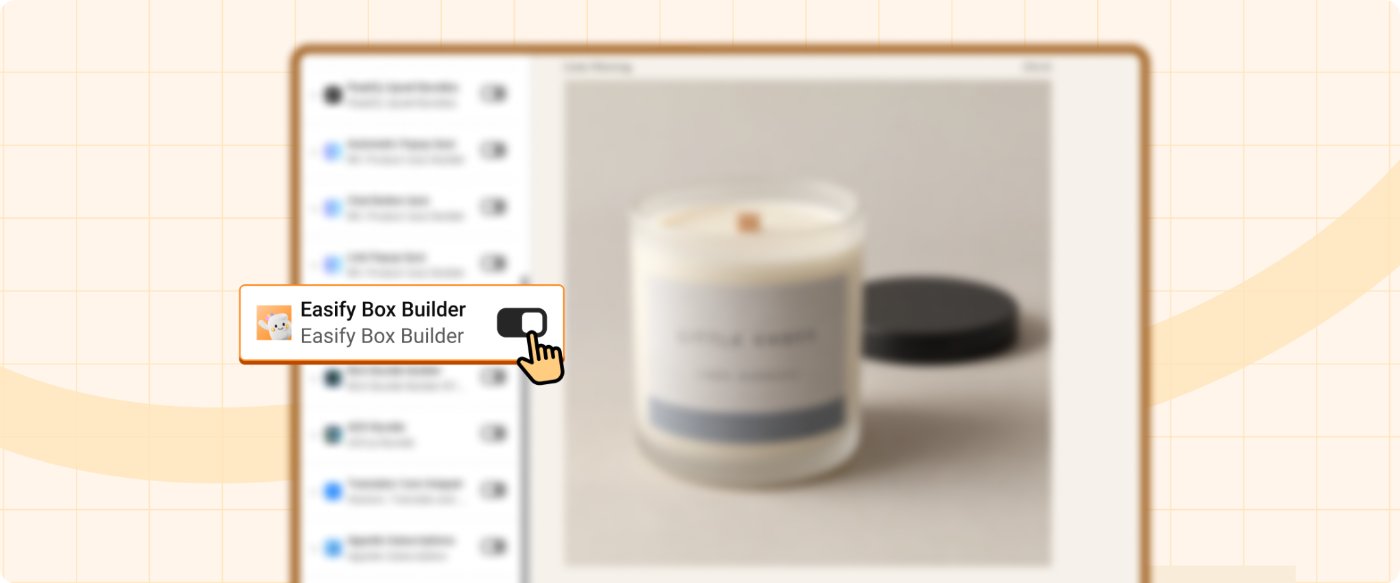
Mia adds a “Build your gift box” button to her Candles collection page, where her shoppers already browse.
Check it again on a laptop or phone
Small layout and pricing problems quietly cost first sales. Walk through the box the way a shopper would, on a laptop or a phone, from opening the box to the checkout step.
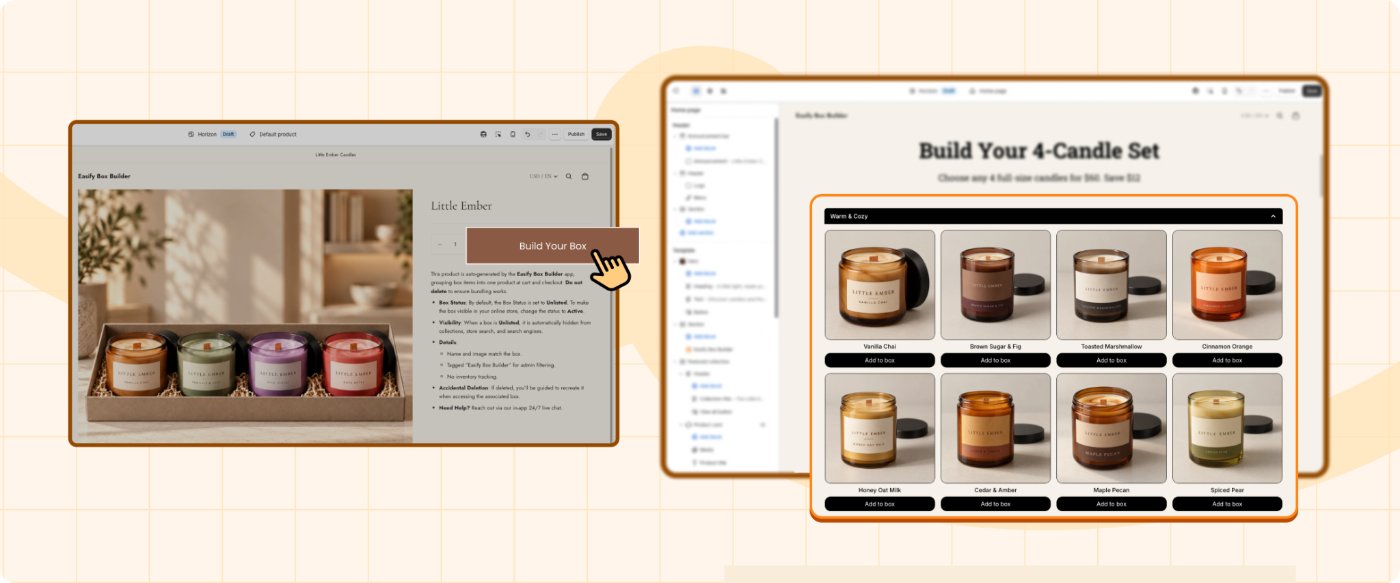
- Open the box from your storefront, not from a direct link.
- Pick products and continue to the checkout step.
- Check that buttons aren't covered or hidden, text doesn't overflow, and the price and box summary are correct.
- Languages: if your store runs more than one language, test each language version. A box can work in one language and not show up in another.
- Inventory: the Linked Product that represents the box doesn't affect your inventory, so we recommend turning off inventory tracking for it.
- Box discount: if your box has a discount, check that the correct amount off shows for each box type.
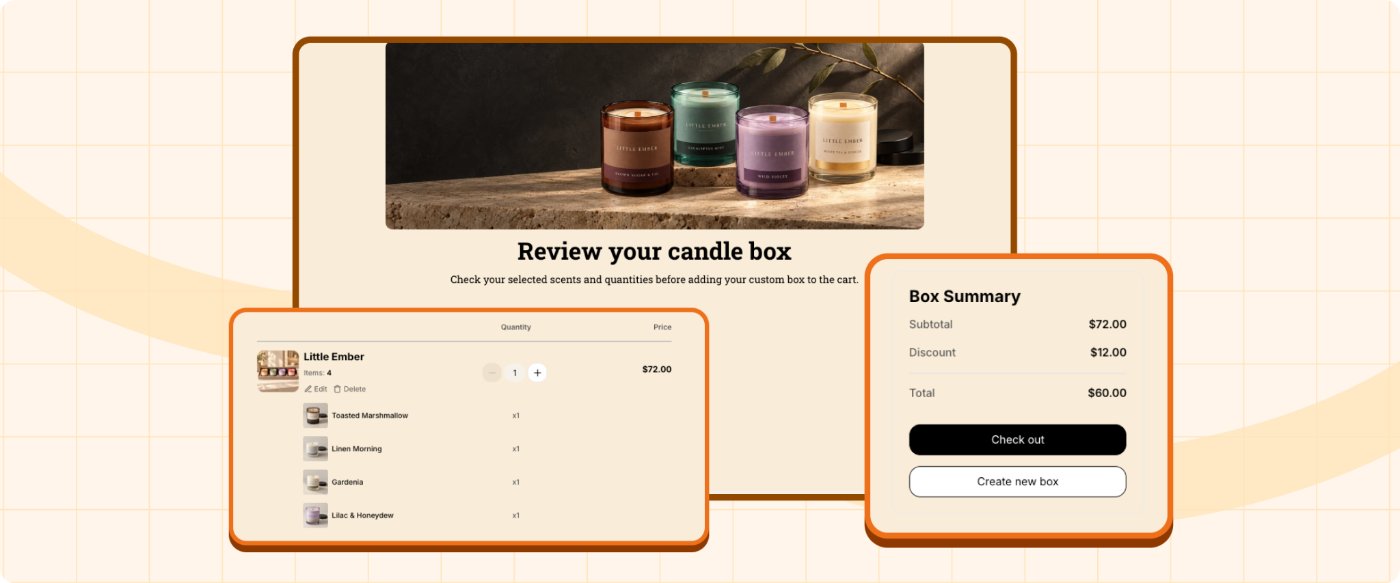
Mia opens her shop on her phone, taps Candles, taps the button, and builds a box. Then she goes on to the checkout step. It is the first time she sees her box the way a shopper does. She repeats the walkthrough on her laptop to be sure.
✓ Done when:
Common questions
Why can't shoppers see my box?
Check three things:
- The box status is Active (Step 2.2)
- The app embed is on and the blocks are on the right page or template (Step 3.1)
- You have chosen a plan, since boxes stay in draft until you do (Step 2.1)
Will I be charged while I test?
You start with a free 14-day trial. On the Start (Free) plan, you won't be charged while your box revenue stays under $500 in a billing cycle. See Step 2.1 for the pricing guide.