


This guide walks you through improving your box in 3 steps, in about 55 minutes.
It is for merchants who have a live box and want more of the shoppers who open it to finish an order.
Each step ends with a checkpoint, so you can pause and come back anytime.
Her candle gift box is live. Shoppers open it, but fewer orders come in than she hoped.
Now she worries:
- Where do shoppers leave?
- If she changes something, could she make it worse?
- Is it her box, or just a slow week?
You may feel the same. We take it one step at a time.

What you will have at the end
- ✓Your starting numbers from Analytics, written down before you change anything
- ✓A findings list of what gets in shoppers' way, with each fix crossed off
- ✓A clear first screen, simple choices, and rules that stop wrong picks
- ✓Trust and urgency features that are true for your store
- ✓A second walk-through on a laptop and a phone
Before you start
- Your box is Active and reachable from your storefront (Level 1)
- A phone and a laptop are within reach
- A note app is open for your findings list
The 3 steps at a glance
 Build better bundles.
Boost every order.

Write down your baseline
Your baseline is your current numbers. Write them down before you change anything, so you can compare later.
- Open the Easify Box Builder app and go to Analytics.
- In Box Performance, set the date range to the period you want to measure, such as the last 14 days. Use Custom to pick your own dates.
- Write down Box Views, Boxes Sold, Box Revenue, Average Box Value, Total Orders, and Average Order Value.
- In Box Statistics, write down Revenue and Order for your box.
- Write the date range next to your numbers.
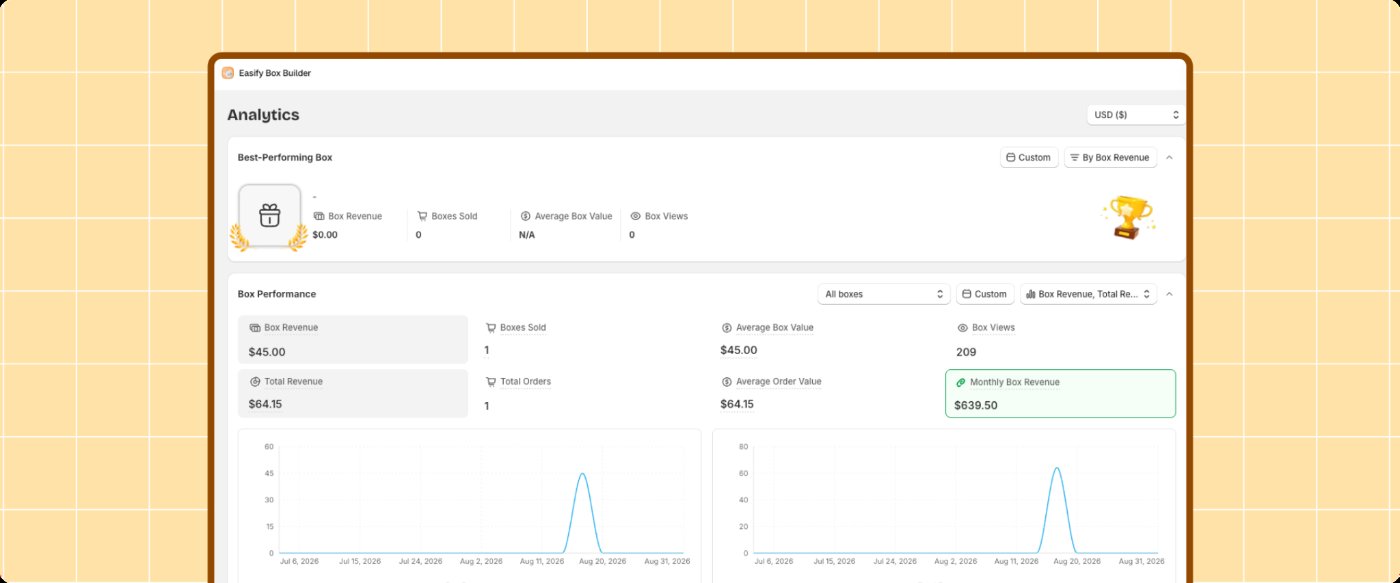
Mia writes down her numbers for the last 14 days. Now she can tell later whether a change really helped.
Run Convert Better: CRO
Convert Better suggests changes that help shoppers finish. Keep a findings list, a simple note where you collect everything you want to fix.
- Open the Revenue Hub, go to Convert better, open the CRO tab, and click Let's get started.
- Read the four checks: Low Stock Counter, Countdown Timer, Free Gifts, and Testimonials. The group is marked Pick at least 1.
- Add the checks that fit your box to your findings list. You set them up later in this guide.
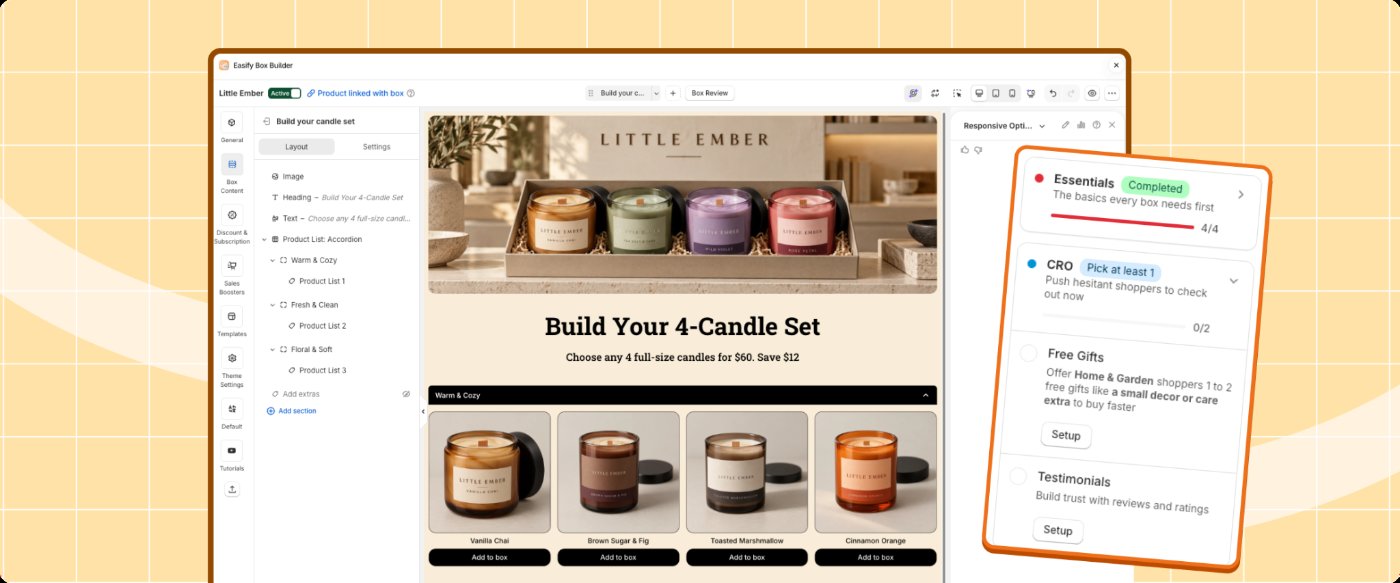
A suggestion is a starting point. Pick the ones that make sense for your products and your shoppers.
Mia adds Low Stock Counter, Countdown Timer, and Testimonials to her list. Free Gifts waits for Level 3.
Shop your box like a stranger
You know your box too well to see it clearly. Buy from it the way a first-time shopper would.
- Open your store on your phone in a private window.
- Find the box from your storefront and build an order from the first screen to the cart.
- Write down every moment you hesitate, get confused, or go back, and the step where it happened.
- Repeat the walk-through on your laptop.
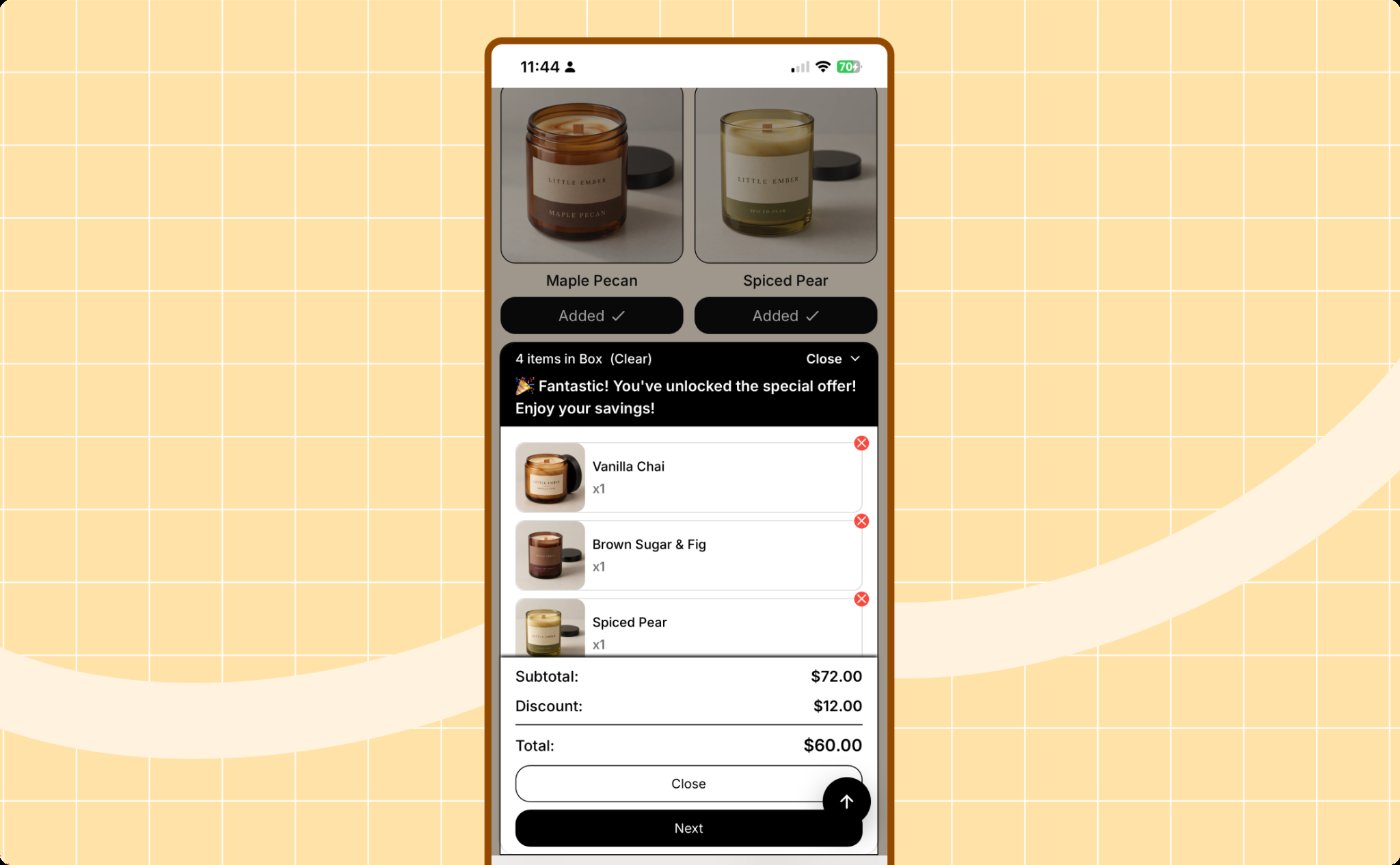
Copy this table into your note and fill it in as you go:
You can also ask an AI agent that browses your store to do the walk-through. Give it your box link and this prompt:
Act as a first-time shopper on [your box link], on a phone-sized screen. Build a box from the first step to the cart. At every step, tell me what you expected, what confused you, and any bug or dead end you hit. Then give me a ranked list of specific fixes.
AI can make mistakes, so check each suggestion before you apply it.
Mia can't tell what to pick first. She also can't tell how many candles fit in the box. Both go on her list.
✓ Done when:
Step 1 of 3 complete. You know where shoppers get stuck.
Mia has a list now, not a guess. This is a good place to pause. Your list is saved in your note. Step 2 fixes what is on it.

Make the first screen obvious
Mia's top three:
- She did not know what to pick first.
- She could not tell how many candles fit in the box.
- She was not sure the Continue button would work on her phone.
The first few seconds decide if a shopper keeps going. A stranger should know what to do without any help.
- Open your box in the Visual Editor.
- In General info, check the box title. It should say what the box is.
- Rename each step in plain words. Avoid technical terms.
- Put the tab or step most shoppers start with first.
- Check that the active step stands out from the others.
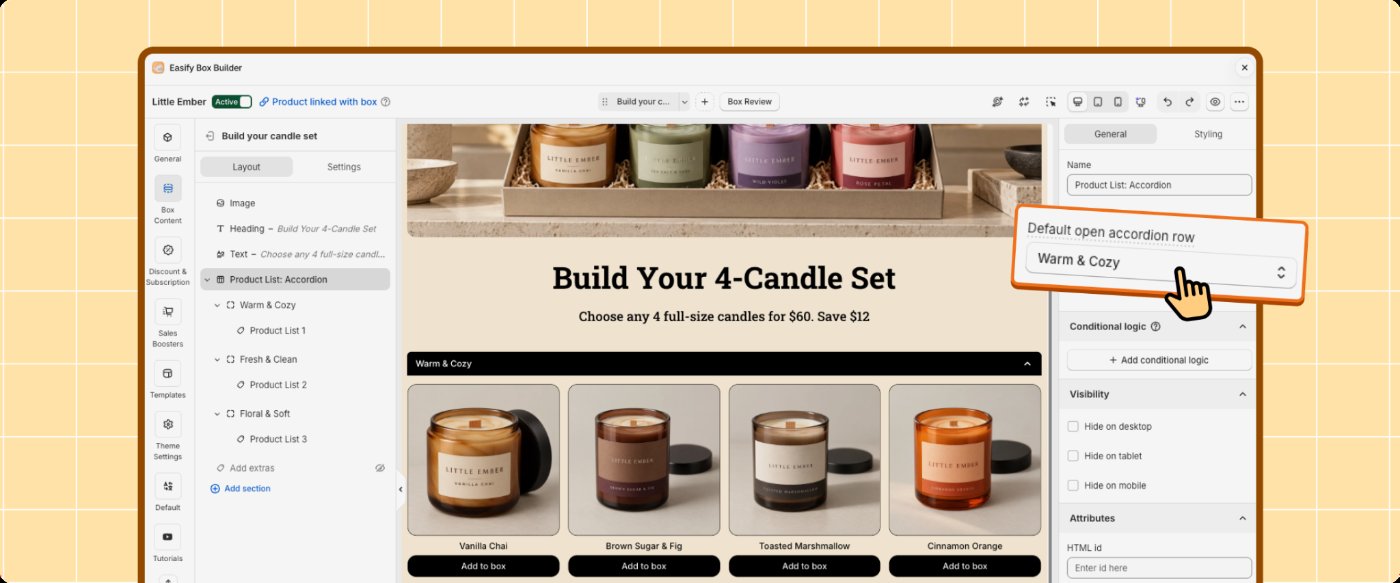
Her steps now read "Pick your 4 candles" and "Add a gift note." The first step says how many to pick.
Keep choices simple and shorten the path
Every extra decision is a chance to stop.
Keep what shoppers choose- Pick an option in the first step.
- Move to the next step, then go back.
- Check that your choice is unchanged.
- Check that it shows in the Quick Summary, and that you can remove an item from there.
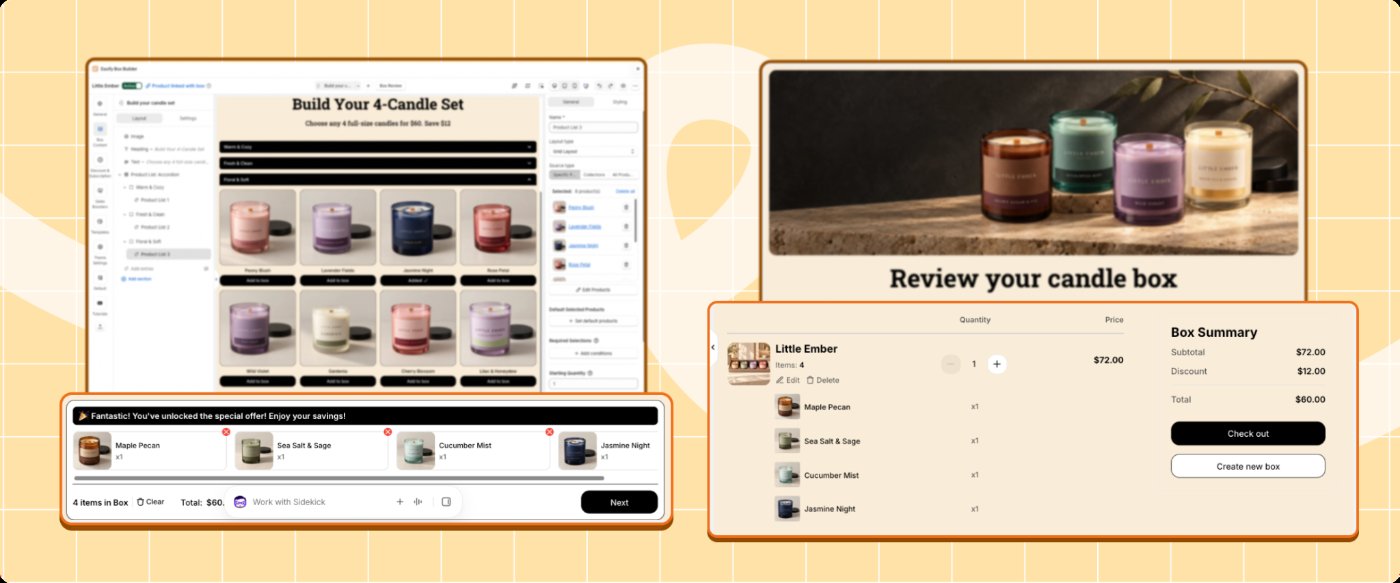
If a choice resets, shoppers think it did not count.
Shorten the pathLook at each step and ask what it needs the shopper to decide.
- Many hard choices in one step: split it into two smaller steps.
- A long or cluttered flow: merge or remove steps.
- Shoppers new to buying online: simplify more.
- Go through your most common journey.
- Go through your highest-value journey.
- Go through a journey that reaches your minimum and maximum limits.
- Check that Continue works every time.
Do this on your phone and on a laptop. A stuck button blocks an order without any warning.
Mia has only two steps, so she keeps them. She tries her journey on her phone and finds Continue works every time.
Set the right rule for each step
Shoppers do not know which combinations make a good order. You do.
A Required Selection lets the box enforce the rule you would give a customer in person.
Pick the rule firstFor each step, ask: "What would I tell a customer to pick here?"
- Require only what a valid order needs.
- Set limits you can fulfil with your stock and packaging.
- Keep one clear rule per step.
- 1In the Visual Editor, open Box Content and select the step.
- 2Open the step's Settings tab.
- 3Find Required Selections and click Add conditions.
- 4Choose is equal to, is greater than or equal to, or is less than or equal to, then set the number.
- 5Check the message that tells shoppers what they still need to choose.
- 6Repeat for each step that needs a rule.
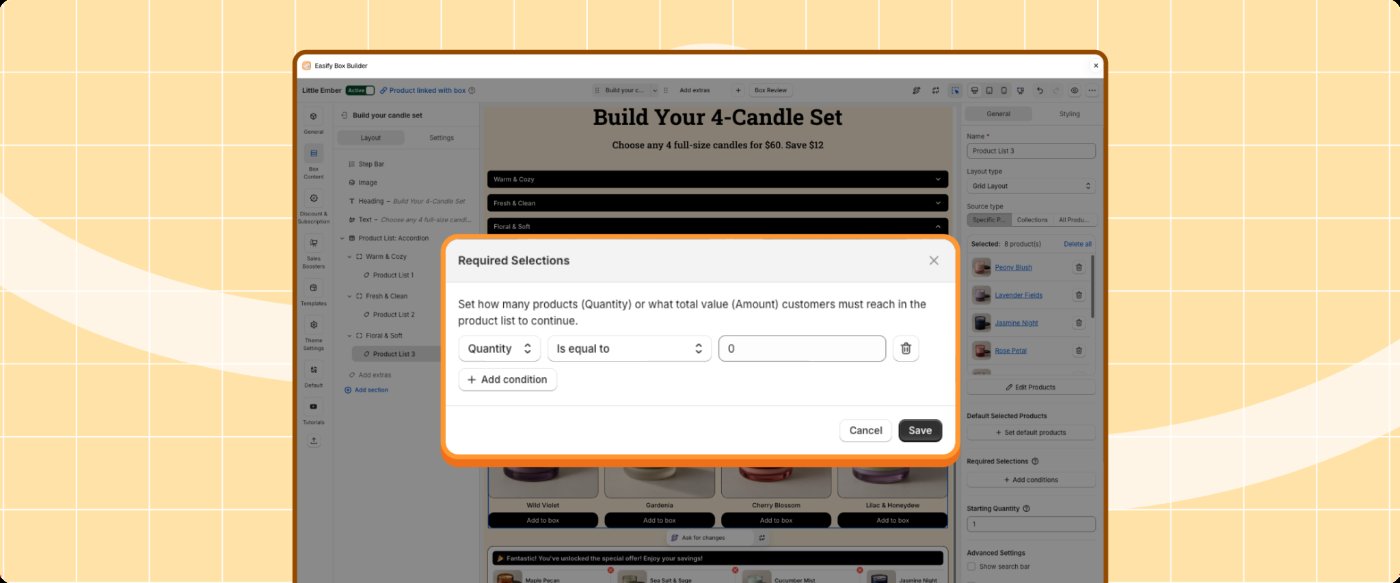
If your box has no limits or required picks, skip this part.
Try to break each rule- Add one item over the limit.
- Choose fewer than the minimum.
- Skip a required pick.
The box should stop you each time. The message should say what to do next.
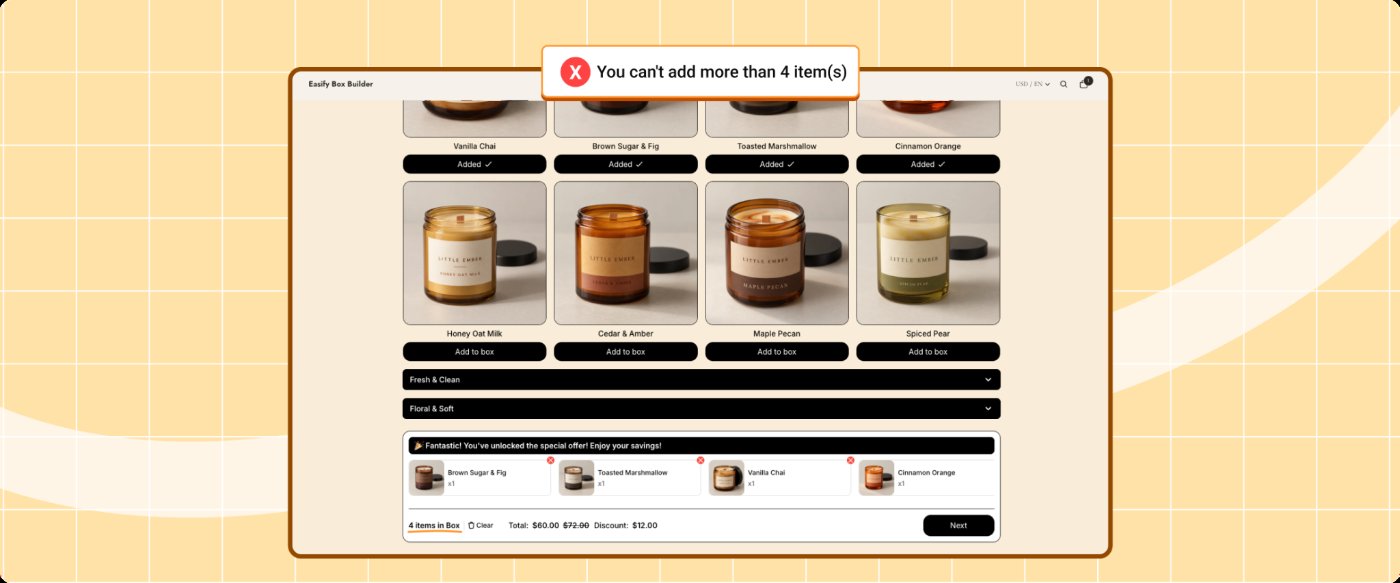
On "Pick your 4 candles" she requires exactly 4. On "Add a gift note" she sets no rule. The box now blocks a fifth candle, and the shopper can't continue with three.
✓ Done when:
Step 2 of 3 complete. The friction on your list is fixed.
Mia's box is easier to use now. This is a good place to pause. Step 3 adds proof and checks your work.

Choose the boosters that are true
Ask three questions before you turn one on:
- Is it true? A stock Counter needs low stock. A Countdown Timer needs a real deadline.
- Do you have enough to show? Testimonials need real reviews.
- Will your shoppers welcome it? If a feature feels pushy, leave it off.
You don't need all of them. One or two is enough.
- 1Open the Revenue Hub and go to Sales boosters.
- 2Click Explore on the card for the feature you want.
- 3Click Try now to open your box, or Demo to see how it looks first.
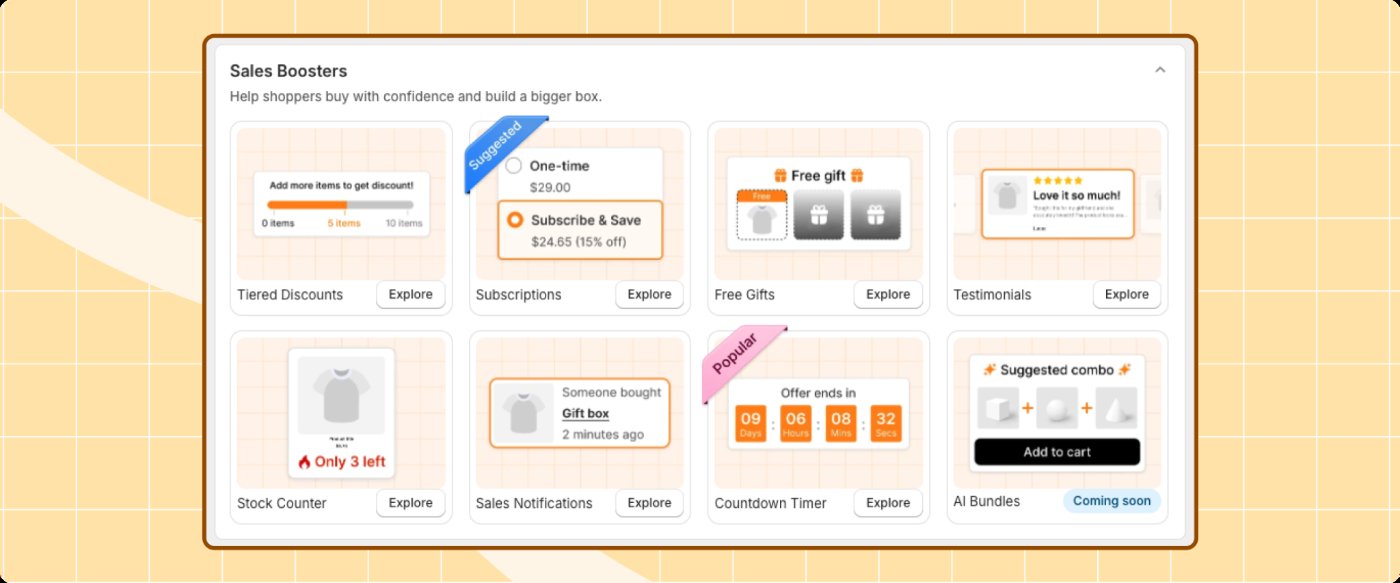
In the Visual Editor, you can also find them in Sales Boosters.
She picks three. She leaves Sales Notifications off, since her shop has few recent orders. Free Gifts wait for Level 3.
Turn them on
- In the Visual Editor, open Sales Boosters and find Stock Counter.
- Set the status to Enabled, then click Edit rules.
- Set the threshold that counts as low stock.
- Choose which products it applies to.
- Use it only when stock is really low.
- Make sure those products have stock tracked in Shopify.
Three candles are genuinely low. She turns the counter on for those three.
- Use real reviews from real customers.
- Do not write them yourself.
She adds three short reviews from customers who bought her candles before.
- Count down to a real deadline, such as your last order date for delivery.
- Leave it off if there is no real deadline.
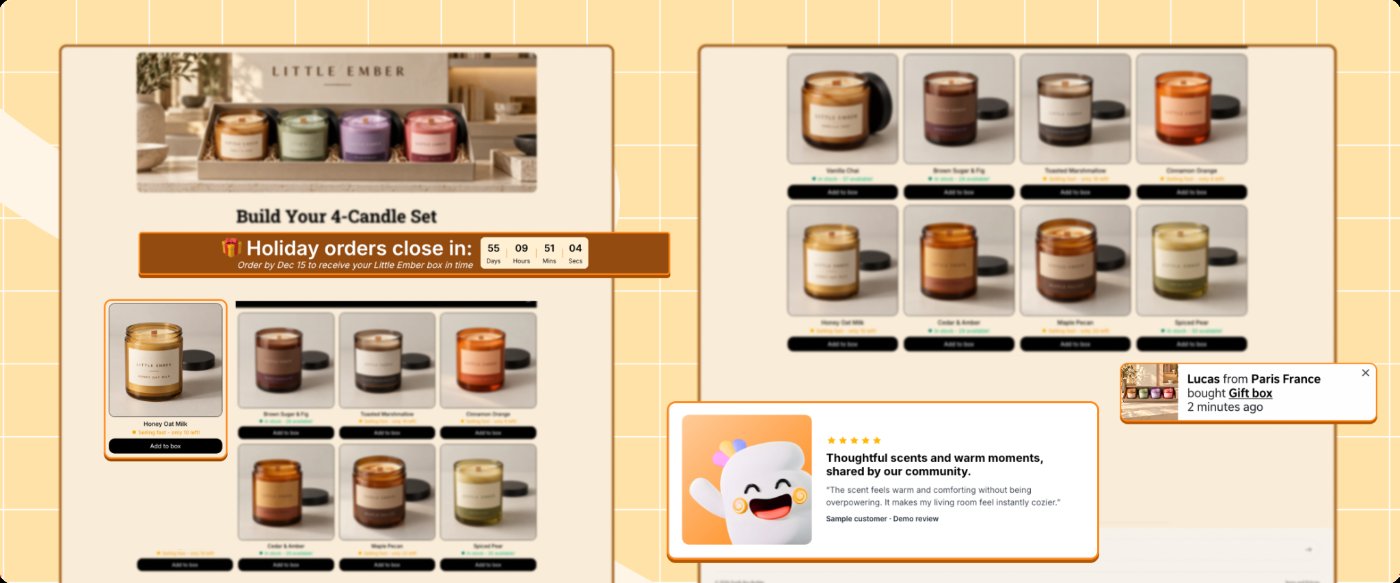
She sets it to her real last-order date for holiday delivery, December 15.
Also check the basics shoppers look for: shipping times, your return policy, clear photos, and a way to reach support.
Check it again and compare
- 1Open the Revenue Hub and go to Convert better.
- 2Open the CRO tab.
- 3Click Re-score.
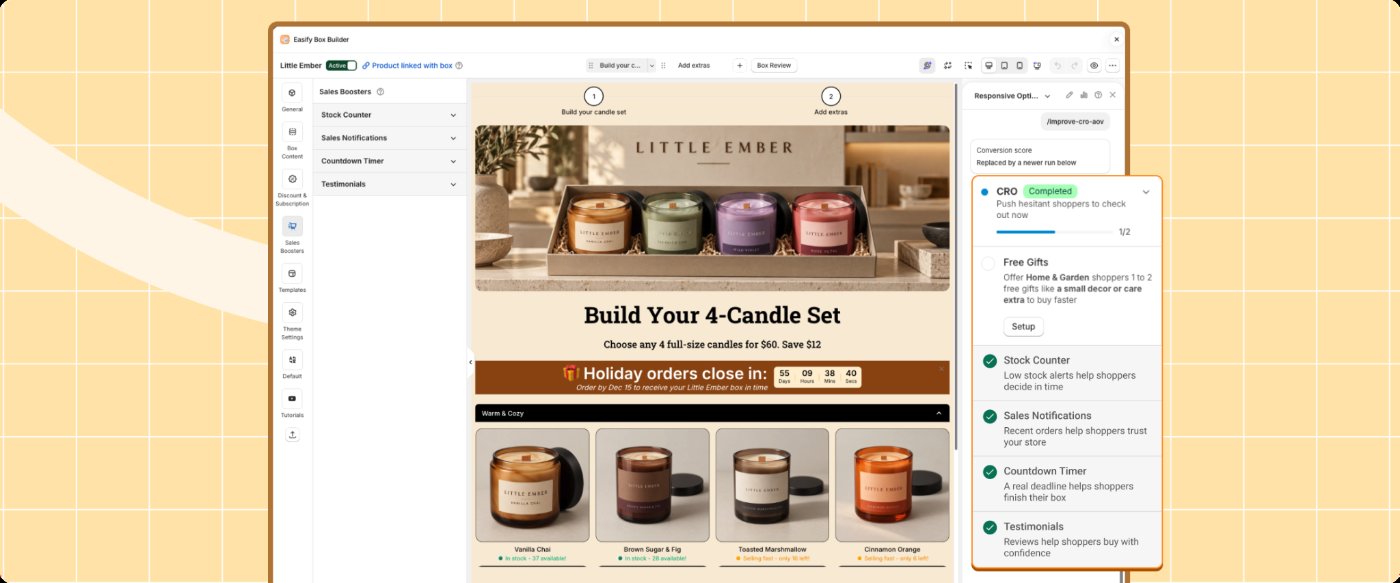
Your score reads Needs Setup, Almost Ready, Sales Ready, or Fully Optimized.
Walk through it again- Open your box on your phone in a private window.
- Open it again on a laptop.
- Build an order from the first screen to the cart.
- Cross off each item on your list from Step 1.
- If a new problem shows up, add it to the list for next time.
- Wait as long as your baseline period.
- Open Analytics with the same date range.
- Compare the numbers you wrote down in Step 1.
- Avoid conclusions from the first few orders.
Her list is crossed off. She sets a reminder to open Analytics in two weeks.
✓ Done when:
Step 3 of 3 complete. Level 2 is done.
Mia's box is clearer, and what it shows is true. She started worried about numbers. Now she has a way to read them.
Common questions
How long should I wait before I compare my numbers?
Wait as long as your baseline period. Use the same date range.
A shorter window shows noise, not a real change.
Do I have to apply every Convert Better suggestion?
No. Apply the ones that fit your shoppers. Skip the rest.
What if a booster isn't true for my store yet?
Leave it off and come back later. A review or count that isn't real costs more trust than it earns.
